

Mobirise is fantastic at one thing: letting you build a good-looking website without writing code. Drag, drop, publish. Done.
But the moment you want to sell a downloadable file — a PDF, a preset pack, a template, a ZIP — you hit a wall. Mobirise builds websites. It doesn’t handle payments, it doesn’t host your files behind a paywall, and it doesn’t allow downloads to customers.
So how do you actually sell a file from a Mobirise site?
Let’s go through the real options.
The problem: Mobirise has no built-in file selling
If you’ve searched the Mobirise forums, you already know the situation. People have been asking. The answers usually boil down to: “try Ecwid”, “use PayPal buttons”, or “embed some third-party script”.
None of these are wrong, but none of them are simple either, especially if your goal is just to sell a file through a payment link.
Here’s what you actually need:
- A way to accept payment.
- A way to deliver the file only to the person who paid.
- Ideally, a fallback if their connection drops (like an email with the download).
Mobirise gives you none of these out of the box. So you need an external tool, and then you link to it from your site.
Option 1: Ecwid
Ecwid is a full e-commerce widget you can embed into any website, including Mobirise. It supports digital products on its paid plans.
Pros: Mature platform, supports catalogs, inventory, coupons.
Cons: The free tier doesn’t include digital product delivery. You’ll need a paid plan (starting around $5/month, with max 10 products) for that feature. It’s also a lot of tool for someone who just wants to sell a single file — you’re essentially embedding a mini-store into your page.
If you’re planning to sell hundreds of products and need a full storefront, Ecwid might make sense. For just some files downloads, it’s overkill.
Option 2: Gumroad
Gumroad is a well-known platform for selling digital products. You can create a product page on Gumroad and add link to it in your Mobirise site.
Pros: Easy to set up. Handles payments and file delivery.
Cons: Gumroad takes a 10% (plus the transaction fees) cut on every sale. Your customer also leaves your website entirely: they land on Gumroad’s page, not yours. You lose control of the experience, and the branding is Gumroad’s, not yours.
Option 3: PayPal button + manual redirect
Mobirise has a PayPal Shopping Cart extension. You could set up a PayPal button and configure it to redirect the customer to a “thank you” page with a download link after payment.
Pros: You pay only the Paypal transaction fees. No third-party platform needed.
Cons: This is where things get messy. The download link on your thank-you page is just a regular URL. Anyone who finds it (or gets it shared) can download your file for free. There’s no access control. There’s no email confirmation. And if the buyer’s internet connection crashes after payment, they’ve lost the link with no way to recover it.
It works, technically. But it feels fragile and unprofessional.
Option 4: Stripe Payment Links + a hidden URL
Stripe lets you create a Payment Link and configure a redirect URL after purchase. You could point this to a hidden page on your Mobirise site where the file download lives.
Pros: Stripe’s fees are low (typically around 2.9% + $0.30). Professional checkout experience.
Cons: Same fundamental problem as the PayPal approach: the download page is just a URL. It’s not protected. If someone shares that link, everyone has access. And there’s no email backup or re-download option for the customer. You’re doing all the stitching together yourself.
Option 5: Paydroply (the payment link approach)
This is where things click for Mobirise users specifically, because the workflow maps perfectly onto how Mobirise works.
Paydroply is a tool that does one thing: you upload a file, set a price, and get a payment link. That’s it. No storefront to build, no catalog to manage, no code to write.
Here’s why it fits Mobirise well:
- You just need a link. Mobirise is great at buttons. You add a “Buy Now” button, paste the Paydroply link, and you’re done. No embeds, no code editor extension, no iframes.
- The file is protected. After payment, the customer lands on a secure, session-bound download page. The link can’t be shared — it only works for the person who paid.
- There’s a fallback. Customers get an email with their purchase. If their connection drops or they close the tab, they can still access the file.
- Re-downloads are covered. Customers can access a dedicated page to re-download any past purchase.
- No monthly fees. You pay a small commission only when you sell (typically 2.9% + $1.30). If you sell nothing, you pay nothing.
- Payments go through Stripe. So you get the same professional checkout experience as Option 4, but with file hosting and secure delivery built in.
How to set it up with Mobirise
The whole process takes about 10 minutes.
Step 1: Create your Paydroply account
Head to paydroply.com and follow the onboarding. You’ll connect your Stripe account (or create one — it’s guided). No credit card required on Paydroply’s side.
Step 2: Upload your file and set a price
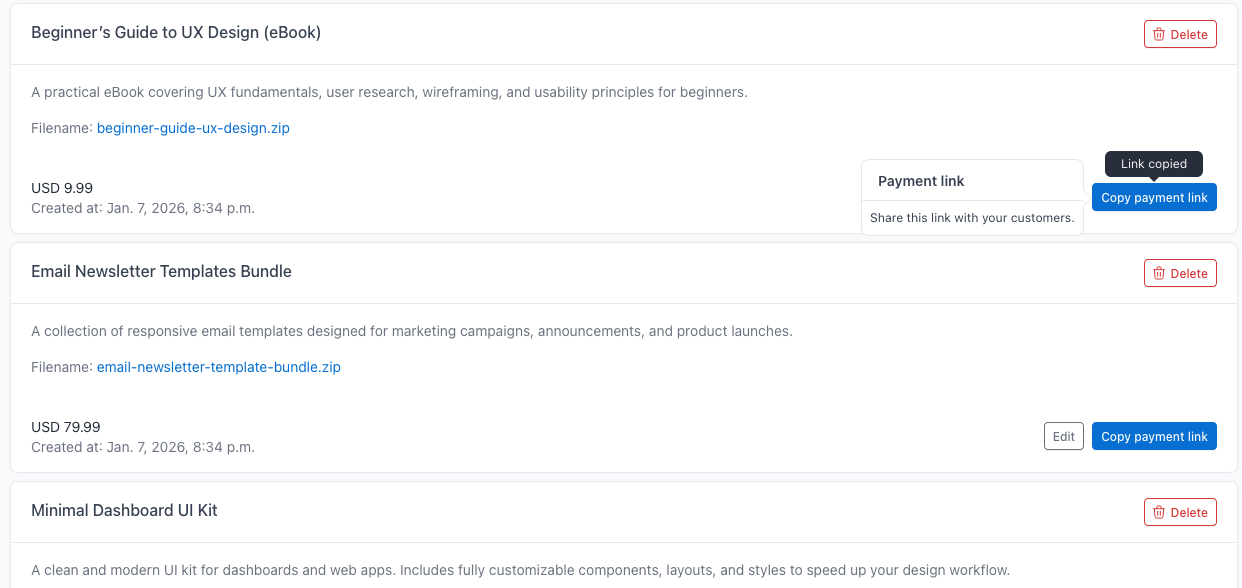
In the dashboard, create a new product. Upload your file (PDF, ZIP, image, whatever you’re selling), write a short description, and choose a price and currency.
You’ll get a unique payment link.
Step 3: Add the link to your Mobirise site
Open your Mobirise project. Add a button (or use an existing one) and paste the Paydroply link as the button URL. Style it however you want: “Buy Now”, “Download”, “Get the Template”, etc. It’s your site.
Publish, and you’re live.
When a visitor clicks the button, they’re taken to a clean checkout page. They pay, they download. The money lands in your Stripe balance.
Bottom line
If you’re using Mobirise, you probably chose it because you don’t want to deal with code or complex setups. The same logic should apply to selling files.
You don’t need a full e-commerce platform “bolted” onto your drag-and-drop site. You need a link that handles payment and delivery. Paste it into a button, and move on.
That’s the whole point.