

You’ve got a website. You’ve got a file: an ebook, a template, a preset pack, whatever. You want people to pay for it and download it. That’s it.
You don’t want to build a store. You don’t want a shopping cart. You just want a link that says “buy this,” handles the payment, and delivers the file.
Here’s how to actually do that, with a honest look at every option.
Why This Is Harder Than It Sounds
The “selling a file” part isn’t the hard part. The hard part is what happens between the payment and the download.
You need something that does three things at once:
- Accepts the payment securely.
- Delivers the file automatically, right after checkout.
- Protects the download link so it can’t be passed around freely.
Miss any one of those, and you’re either losing money, losing sleep (manually sending files), or both.
Option 1: PayPal + Google Drive Link (Free, But Fragile)
The scrappiest approach. You put a PayPal button on your site, and after payment, you redirect buyers to a Google Drive link.
Why people try it: Zero cost besides the transactions fees, little setup. But as we’re going to see later, this isn’t the only free option.
Why it breaks down fast: The download link is public. One buyer shares it on Reddit, and suddenly your file is free for everyone. There’s no purchase confirmation email, no way for the buyer to re-download if they lose the file, and no file protection whatsoever. It also looks unprofessional: your buyer just handed over their credit card and landed on a raw Google Drive page.
Good for testing if anyone wants your file at all. Bad for actually running a business.
Option 2: Gumroad or similar (Full Platforms)
These are all-in-one creator storefronts. They handle payments, file hosting, and delivery.
Why people use them: Everything in one place. If you plan to sell dozens of products and build a full catalog, they can work.
Why they might not be right for you: They’re designed around their storefront, not yours. You’re sending traffic away from your website to their checkout page, inside their ecosystem. Gumroad takes a 10% cut on top of payment processing fees. These platforms push buyers to create accounts on their platform, not yours.
If you just want to sell some files from your own site, it’s too much.
Option 3: Stripe Payment Links + Custom Code (Powerful, But Technical)
Stripe is the gold standard for payment processing. You can create a Payment Link and embed it on your site.
Why developers love it: Full control, lowest fees, no platform lock-in.
The catch: Stripe processes payments. It doesn’t host files or deliver downloads. After checkout, you need to build the delivery yourself — either with webhooks and a server, or by wiring together Stripe + Zapier + a file host. That’s multiple subscriptions, a fair amount of glue code, and things that can (and will) break at 3am on a Saturday.
Great if you’re a developer who enjoys that kind of thing. Overkill if you just want to sell a PDF.
Option 4: Paydroply (Free, The “Just a Link” Approach)
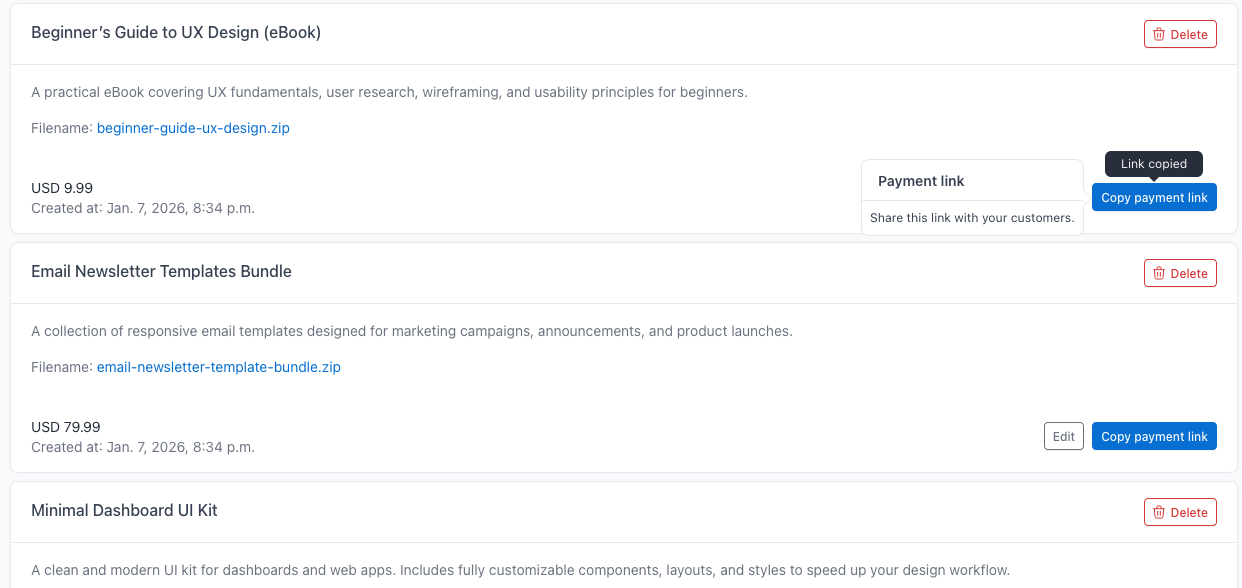
This is the option built specifically for the problem described in this article. Paydroply lets you upload a file, set a price, and get a payment link. You paste that link on your website — in a button, a blog post, a nav menu, wherever — and everything else is handled.
Here’s what happens when a buyer clicks your link:
- They land on a clean checkout page (powered by Stripe).
- They pay.
- They’re immediately redirected to a secure download page.
- They also get an email with a download link, in case they lose connection.
- If they ever need the file again, there’s a page where they can re-download past purchases.
The download link is session-bound: it only works for the buyer who paid. No public URLs floating around.
What it costs: No monthly fee. No signup fee. You don’t pay anything if you don’t sell anything. You pay 2.9% + $1.30 per transaction (roughly, just 99cents more than the Stripe transaction fee) and that’s it. If your file is priced at more than $100, then you pay just the Stripe fees (roughly 2.9% + $0.30) + 1% Paydroply fee.
Setup time: About five minutes. You create an account (which connects to Stripe), upload your file, set the price, and copy the link.
What it doesn’t do: It’s not a storefront. There’s no catalog, no shopping cart, no themes to customize. If you need those things, look at Option 2. If you don’t need those things — and most people selling some files from their own website don’t — this simplicity is the whole point.
So Which One Should You Pick?
It depends on where you are:
Building a full creator business with dozens of products? Gumroad will give you the storefront infrastructure, at a cost.
Developer who wants full control? Stripe + your own delivery system. You’ll spend time building it, but you’ll own every piece.
You have a website, you have a file, and you want to sell it today without building anything? That’s exactly what Paydroply was made for. Upload, price, link, done.
Ready to try it? Create your first payment link with Paydroply — it’s free, takes five minutes, and doesn’t require a credit card.
Image credits:
- post cover